

Jobs
Creating a Job is easy.
Each job includes full control over status, visibility, job details, duties, qualifications, wages, location assignments, and more.
There’s even a Job Quality Grader to assist in will help you build a complete, high-quality job listing.
Want to restrict where you accept job applications from, use the Application Filter.
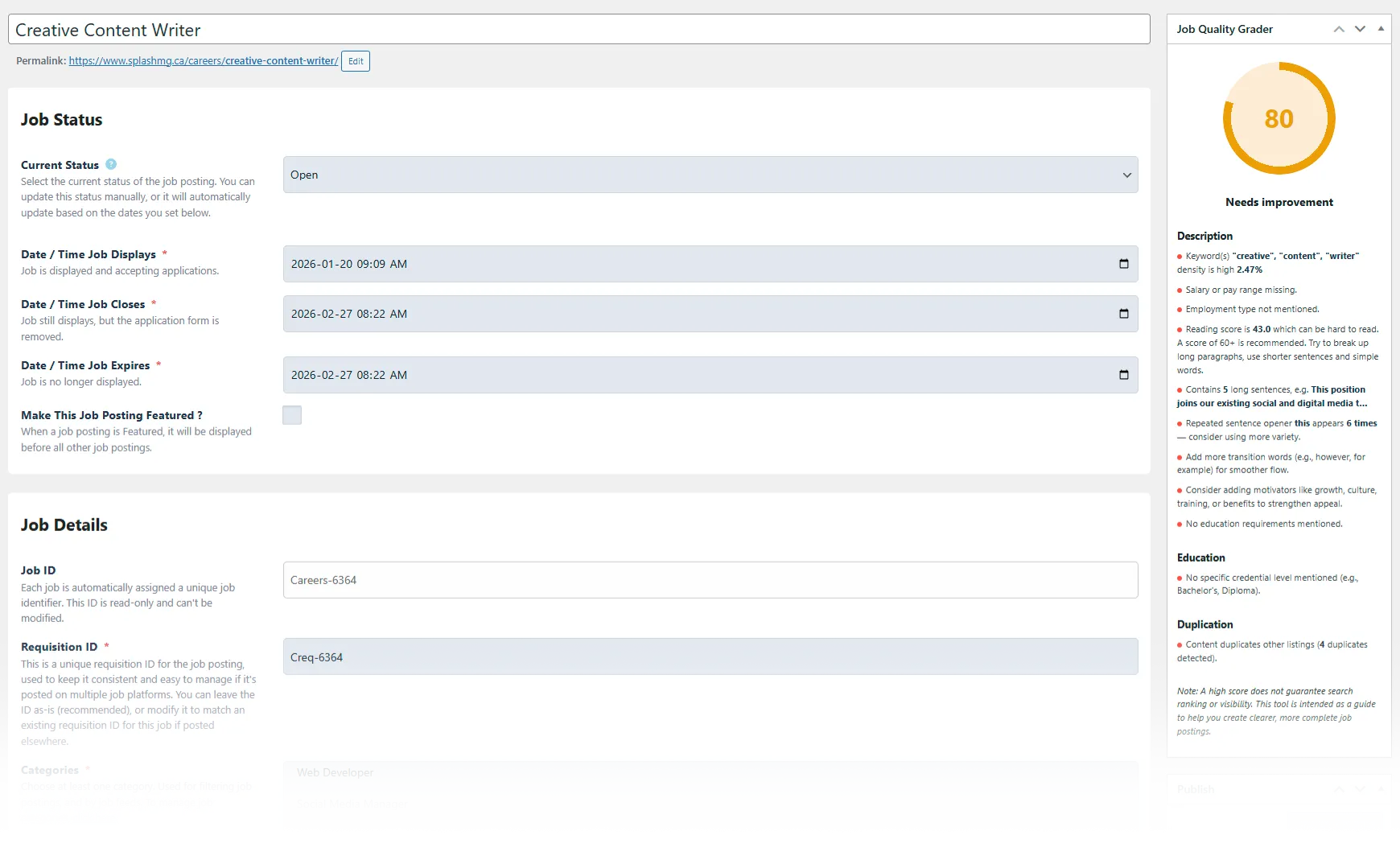
TIP: A good resource for how to write a good job description is this page from Indeed: https://ca.indeed.com/hire/how-to-write-a-job-description
Job Errors & Status Notices

Errors Notice: The Job Posting Errors area displays helpful notices when required information is missing or incomplete. These messages do not prevent the job from being published or displayed, but they indicate details that should be reviewed or updated for best results. Errors may highlight missing fields, incomplete job data, or items that could affect job feeds or applicant clarity. Each message explains what needs attention so you can make improvements as needed.
Status Notice: The Job Status panel displays the current state of your job posting—such as whether it is open, closed, expired, scheduled, or archived. This section also shows when the job will be published or hidden based on the display dates you set. You can update the job status manually or rely on automatic updates triggered by the start, close, and expiry dates.
Job Name

Enter the name of the job.
- Use industry-standard terms for the industry you are hiring for (ie: Account Manager, Social Media Strategist, etc.)
- Don’t include the job’s location in the name.
Job Status
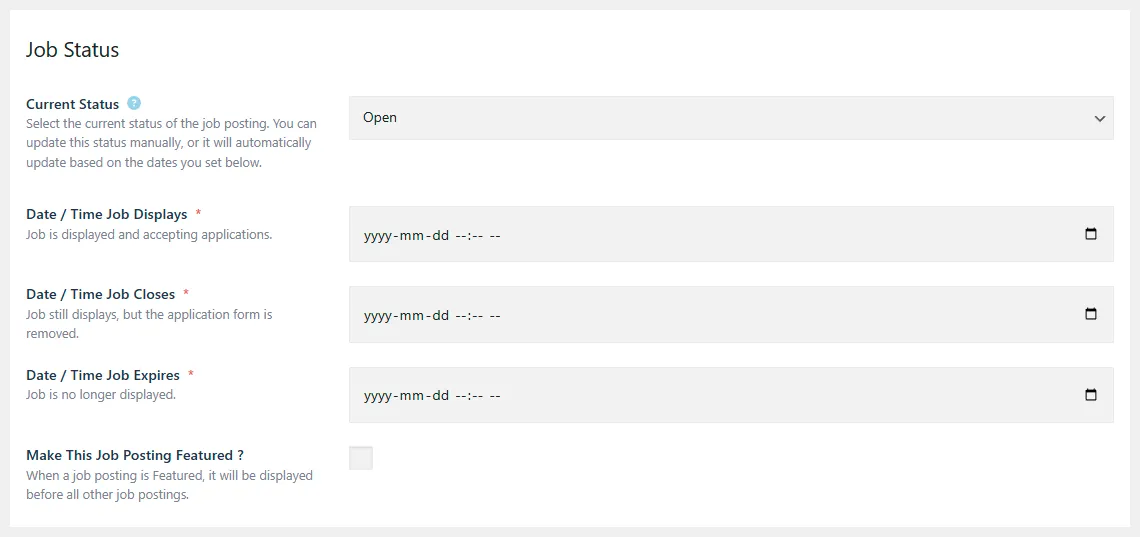
Current Status
By default, when creating a job, the status is set to Open. You can change the status manually, or automatically based on the display dates you set.
Open: Job is displayed and accepting applications.
Closed: Job still displays, but applications are no longer accepted.
Expired: Job is no longer displayed.
Filled: Position has been successfully hired for.
Draft: Job exists but is not displayed.
Scheduled: Job will display at a future date/time.
Paused: Job is temporarily hidden; display dates remain active.
Archived: Job is not displayed and display dates are disabled. This is great is you want to reuse this job at a later date.
Date / Time Job Displays: Sets the date and time the job becomes visible and begins accepting applications.
Date / Time Job Closes
Set the date applications stop being accepted. The application form will be removed, however the job posting will still display.
Date / Time Job Expires
Set the date the job posting is removed from displaying.
Make This Job Posting Featured
Featured jobs are displayed before all other job postings.
Job Details
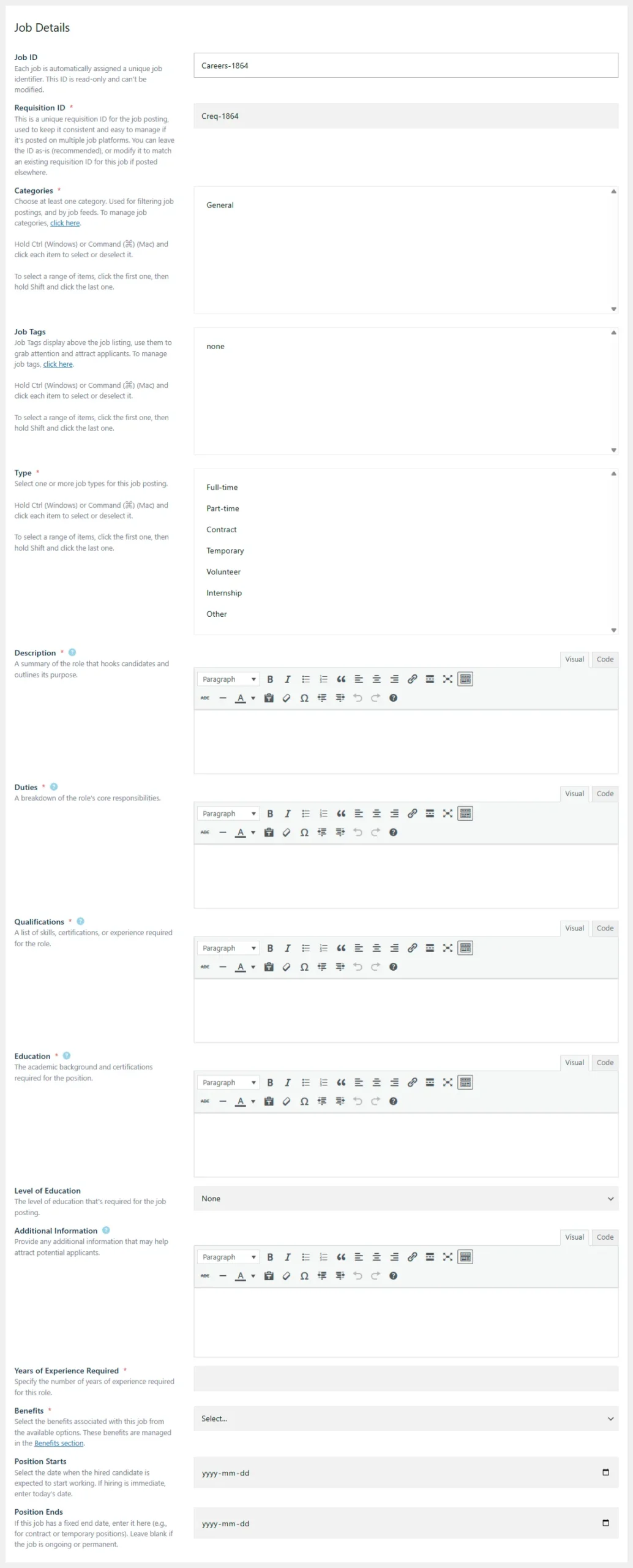
Job ID: A unique identifier automatically assigned to each job. This field is read-only.
Requisition ID: A unique identifier used for managing the post across multiple platforms. You may keep the automatically generated ID (recommended) or match it to an existing requisition number used elsewhere.
Categories: Categories are used for filtering and for job feeds. Select one or more job categories.
- Hold Ctrl (Windows) or Command (⌘) (Mac) to select/deselect multiple items.
- Hold Shift to select a range.
Job Tags: Tags appear above the job listing and are used to highlight features or attract attention. Tags are optional.
- Use Ctrl/Command to select multiple tags.
- Shift-click selects a range.
Type: Select one or more job types from the options provided (e.g., Full-Time, Part-Time, Contract).
Description: A summary that describes the role and captures applicant interest. Write an effective job description, using the following best practices:
- Include the exact job title in the first sentence.
- Mention the job location early.
- Use clear, direct language (minimum 300 words).
- Avoid clichés or jargon (“Rockstar,” “Ninja”).
- Use motivating keywords (growth, development, benefits).
- Highlight unique elements of the role or company.
- Include salary/wage information.
- Note required education and employment type.
Duties: List the main duties, using the following best practices:
- Use bullet points for clarity.
- Begin each duty with an action verb.
- Focus on 5–7 essential responsibilities.
- Include keywords candidates are likely to search for.
- Highlight any unique or defining tasks.
Qualifications: List the required and preferred skills, certifications, and experience, using the following best practices:
- Use bullet points.
- Separate into Required and Preferred.
- Use clear, recognized terminology.
- Specify experience (e.g., “3+ years” instead of “some experience”).
- Include relevant certifications and tools.
Education: Specify the education requirements and certifications, using the following best practices:
- Write at least 20 words.
- Clearly state minimum education levels.
- Use common, searchable terms (e.g., “Master’s degree,” “Red Seal Certification”).
- Avoid overly narrow requirements unless necessary.
- If no educational experience or certifications are required, include a sentence to explain that.
Level of Education: Select the level of education required for the position, from the options provided. Select the closest match to the role’s requirements, as this information is used by platforms such as Google Jobs and Indeed to properly categorize and display your posting.
- None
- High School
- Associate’s Degree
- Bachelor of Arts
- Professional Certificate
- Post-Graduate Degree
Additional Information: Include any extra details that help applicants understand your company or the role. Best Practices:
- Include at least 20 words.
- Highlight culture, mission, and workplace values.
- Mention growth or development opportunities.
- Explain what makes your workplace stand out.
- Provide any helpful context for applicants preparing to apply.
Years of Experience Required: Specify the number of years of experience needed for the role. Set it to 0 if none are required.
Benefits: Select the applicable benefits from your predefined list. These are managed in the Benefits section.
Position Starts: Choose the expected start date. Use today’s date if hiring immediately.
Position Ends: Enter an end date for contract or temporary positions. Leave blank for permanent roles.
Job Location
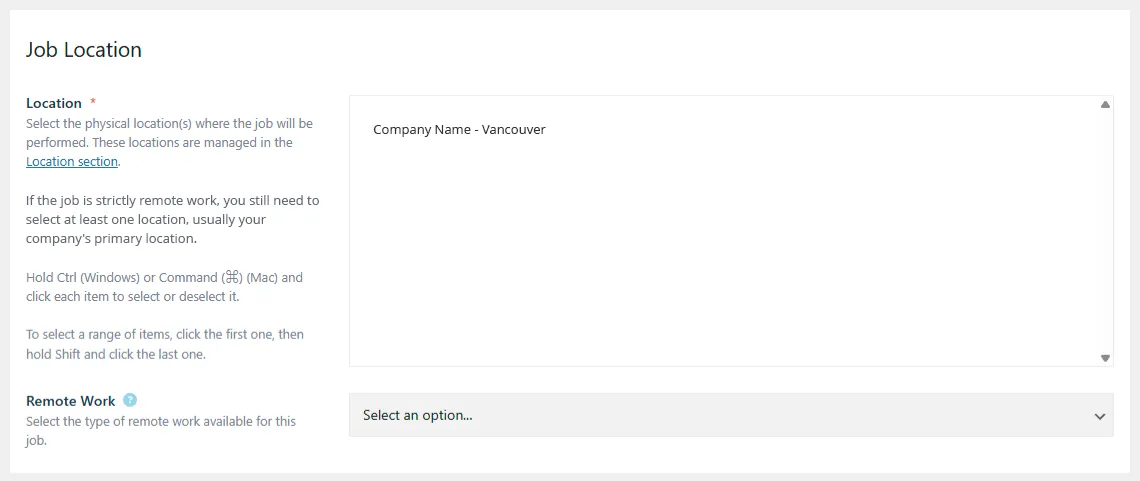
Location: Select the physical location where the job will be performed. Locations are managed in the Location section.
Remote Work Options: Choose the type of remote work arrangement:
- Office Only
- Fully Remote
- Hybrid
- Temporary Remote
Company Profile

Company: Select the company profile associated with this job posting. Profiles are managed in the Company section.
Job Wage
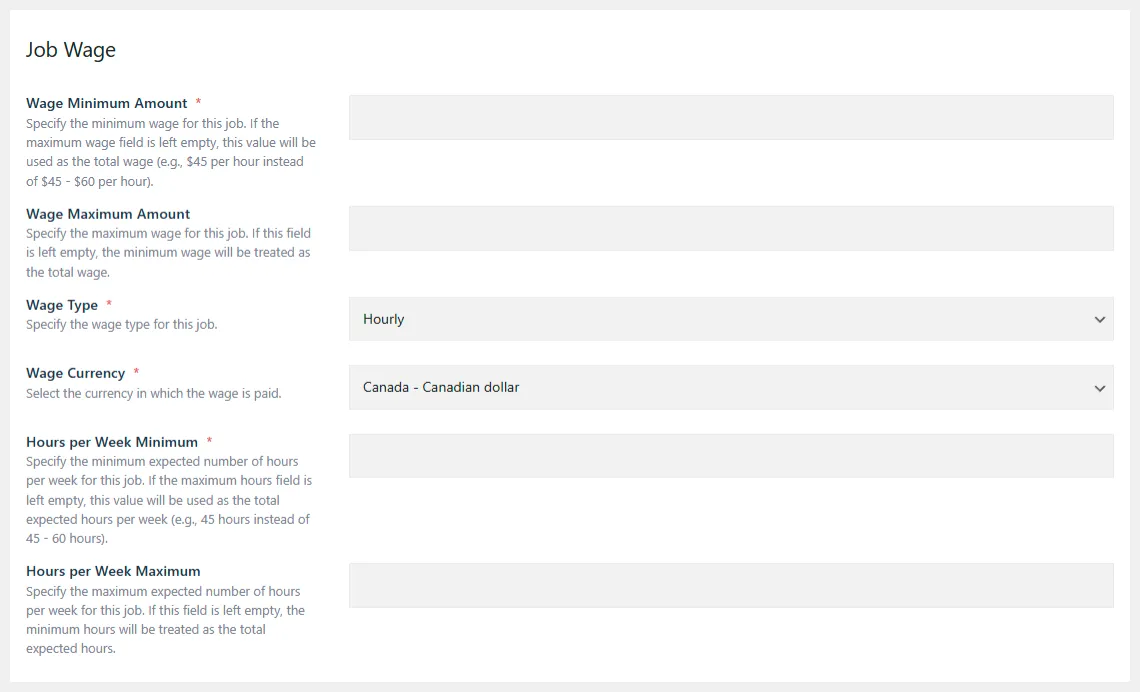
Wage Minimum Amount: Specify the minimum wage or salary for the role. If no maximum is provided, this becomes the full wage value.
Wage Maximum Amount: Maximum wage or salary for the role. Leave blank if the wage is a fixed amount.
Wage Type: Select the wage type:
- Hourly
- Daily
- Weekly
- Monthly
- Yearly
Wage Currency: Select the currency in which the wage is paid.
Hours per Week Minimum: Specify the minimum expected weekly hours. If no maximum is set, this is used as the total.
Hours per Week Maximum: Maximum weekly hours. Leave blank if the hours are fixed.
Application Filter
The Application Filter allows you to limit who can apply based on geographic eligibility.
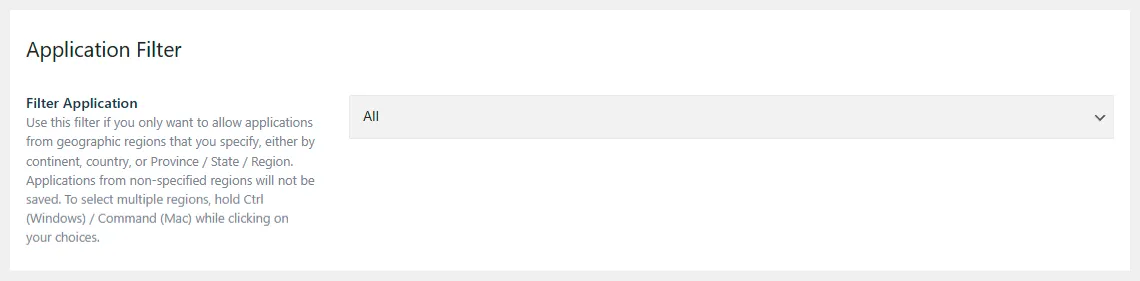
Filtering options: Hold Ctrl (Windows) or Command (Mac) to select multiple regions.
- All – Anyone can apply.
- Country – Limit applications to selected countries.
- State/Province/Region – Limit applications to specific regions.
Deleting or Reusing Jobs
Deleting a job posting will not delete any job applications associated with it. If you have a common job that will be reused in the future, you can set its status to Archived, instead of deleting it.