Meta Fields
There are 6 optional Meta Fields that allow you to display summarized project details with each project, for example ‘Client’, ‘Value’, ‘Industry’, etc.
First you configure each meta field. Then when editing a project, your meta fields appear in the Project Settings where you can enter the project details.
To view the Meta Fields: go to Projects → Settings → Meta Fields
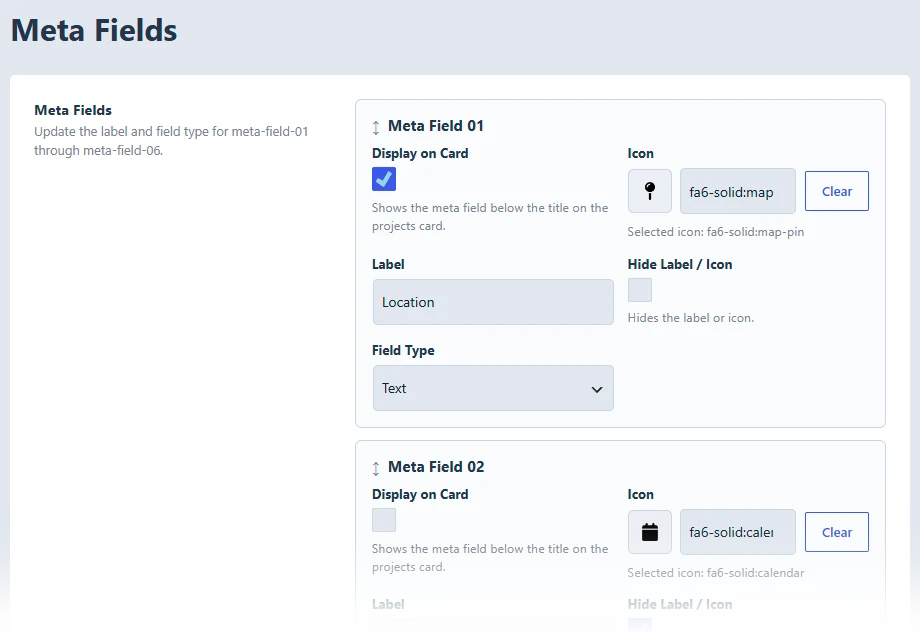
Meta Field Settings
Label: The name shown on the front-end and in the project editor.
Example setup:
- Meta Field 01: Client
- Meta Field 02: Location
- Meta Field 03: Project Type
- Meta Field 04: Sector
- Meta Field 05: Start Date
- Meta Field 06: Project Value
Note: Changing a Label does not delete existing project data.
Field Type: Controls how the value is entered and displayed. Options include text, number, price, date, and date/time.
- Text: allows you to enter text
- Number: allows you to enter a number
- Price: allows you to enter a price
- Date: allows you to enter a date
- Date / Time: allows you to enter a date and time
Example setup:
- Meta Field 01: Client (text)
- Meta Field 02: Location (text)
- Meta Field 03: Project Type (text)
- Meta Field 04: Sector (text)
- Meta Field 05: Start Date (date)
- Meta Field 06: Project Value (price)
Note: Changing a Field Type does not delete existing project data. It only changes how that field accepts project details.
Icon: Adds an icon beside the field when displayed. (optional)
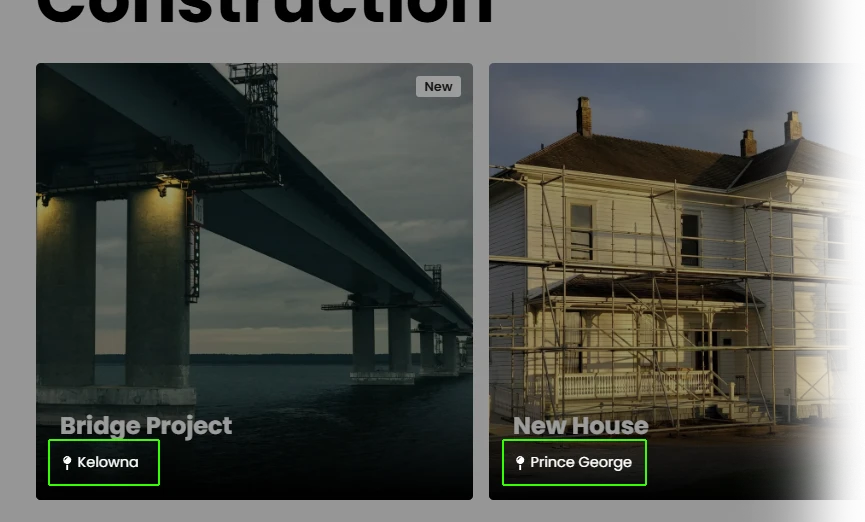
Display on Card: Choose to display the field below the project title on project cards. (optional)
Hide Label / Icon: Displays the meta field value only, without the label or icon. (optional)
Drag Order: Reorder the fields to control how they appear in the editor and on the front-end. (optional)
Front-End View: Project Card
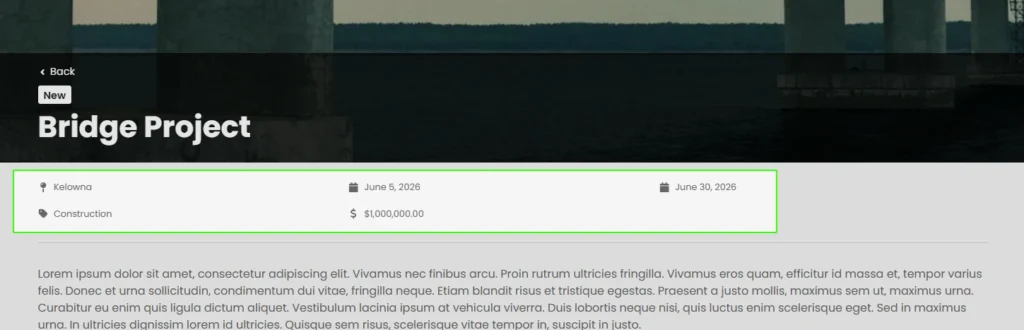
Front-End View: Detail Page